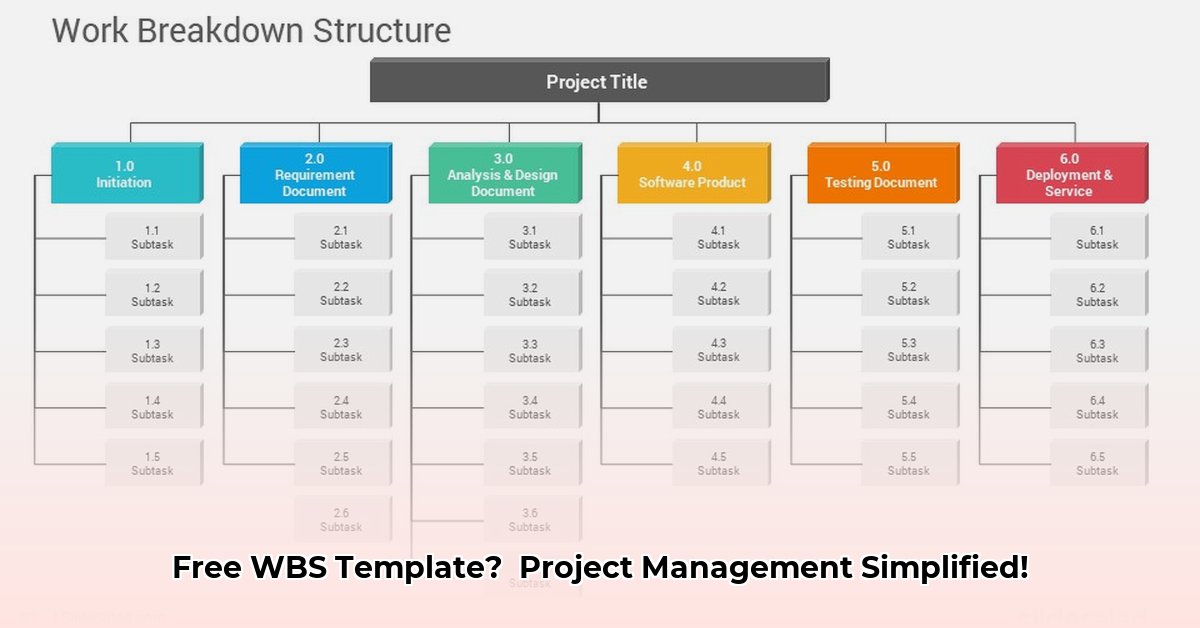
What is a Work Breakdown Structure (WBS)? Your Project's Roadmap
Feeling overwhelmed by complex projects? A Work Breakdown Structure (WBS) – a hierarchical decomposition of a project into smaller, more manageable components – is your solution. Think of it as a detailed roadmap, guiding you from inception to completion. Using a WBS template in Google Sheets streamlines this process, offering a flexible and collaborative tool for project management. This comprehensive guide will show you exactly how to create and utilize a WBS in Google Sheets, enhancing your project planning and execution.
Why use a WBS? It facilitates better planning, improves communication, and optimizes resource allocation, ultimately leading to increased project efficiency and success. Are you ready to boost your project management skills?
Building Your WBS Template in Google Sheets: A Step-by-Step Guide
Creating a WBS in Google Sheets is surprisingly straightforward. Follow these steps to build your own effective template:
Step 1: Define the Project Goal (The "Why")
Begin with a clear, concise statement of your project's ultimate objective. What specific outcome are you striving for? This forms the foundation of your WBS.
Step 2: The Main Task (1.0): The "What"
Next, define your main project task – the overarching goal. This is the top-level item in your WBS hierarchy, representing the core project objective.
Step 3: Break It Down: Sub-Tasks (1.1, 1.2, etc.)
Decompose the main task into smaller, more manageable sub-tasks. Each sub-task should represent a distinct step toward achieving the main objective.
Step 4: Further Decomposition: Even Smaller Tasks (1.1.1, 1.1.2, etc.)
Continue breaking down sub-tasks into even smaller, actionable components until each task is clearly defined and easily achievable. Google Sheets' nested structure makes this incredibly efficient.
Step 5: Assign Resources and Deadlines: The "Who" and "When"
Allocate each task to a specific team member and set realistic deadlines. Using cells in Google Sheets for assignments and due dates keeps everything organized and visible.
Step 6: Leverage Google Sheets' Power:
Go beyond simple organization! Utilize Google Sheets' formulas for automatic progress tracking, calculating overall project completion based on task completion status, transforming your WBS into a dynamic project monitor.
Here's a sample WBS structure:
| Task ID | Task Description | Assigned To | Due Date | Status | Notes |
|---|---|---|---|---|---|
| 1.0 | Develop Marketing Campaign | Sarah | 2024-03-15 | In Progress | Requires final stakeholder sign-off |
| 1.1 | Create Marketing Materials | John | 2024-03-08 | Complete | All materials reviewed and approved |
| 1.1.1 | Design Social Media Graphics | Jane | 2024-03-01 | Complete | |
| 1.1.2 | Write Email Newsletter Content | Mike | 2024-03-05 | Complete | |
| 1.2 | Execute Marketing Campaign | Marketing Team | 2024-03-15 | In Progress | Awaiting final approval before launch |
| 1.2.1 | Schedule Social Media Posts | Jane | 2024-03-15 | Not Started | |
| 1.2.2 | Send Email Newsletter | Mike | 2024-03-15 | Not Started | |
| 1.3 | Analyze Campaign Results | Sarah | 2024-03-22 | Not Started |
Best Practices and Advanced Techniques
Best Practices:
- Collaboration: Share your Google Sheet WBS for real-time collaboration.
- Regular Updates: Maintain an up-to-date WBS reflecting project progress.
- Visualizations: Use charts and graphs to visualize progress and completion percentages.
- Contingency Planning: Develop a separate section for potential problems and solutions, mitigating risks.
Advanced Techniques (Optional):
- Integrate your Google Sheet WBS with other project management tools for a comprehensive workflow.
- Customize columns to track dependencies, risks, and other relevant metrics.
- Utilize Google Sheets' data analysis capabilities for valuable insights. Does real-time data analysis improve project efficiency?
Troubleshooting and Avoiding Common Pitfalls
Even the most meticulously crafted plans may encounter unexpected challenges. Addressing these issues proactively ensures project success.
| Potential Problem | Solution |
|---|---|
| Vague Task Descriptions | Ensure tasks are SMART (Specific, Measurable, Achievable, Relevant, Time-bound). |
| Inconsistent Updates | Establish a regular update schedule and adhere to it. |
| Lack of Team Buy-in | Involve the team in WBS creation for increased commitment and ownership. |
| Overlooked Dependencies | Clearly identify task dependencies using visual cues or conditional formatting. |
| Unrealistic Deadlines | Account for potential delays by building buffer time into your schedule. |
Conclusion: Embrace Efficient Project Management
A well-structured WBS in Google Sheets is an invaluable tool for project management, offering a clear, collaborative, and dynamic approach to project planning and execution. By implementing the techniques outlined in this guide, you'll significantly improve your project management efficiency and increase your chances of successful project outcomes. Are you ready to optimize your project management workflow?
⭐⭐⭐⭐☆ (4.8)
Download via Link 1
Download via Link 2
Last updated: Sunday, May 11, 2025